

Meta ads showing “Active” with zero spend almost always trace back to one of four things: a billing or account block, an auction constraint like a bid cap or tiny audience, a pending review or learning-phase delay, or a broken tracking event. Check the Delivery column status and your Billing page first. Give genuinely new campaigns 24–72 hours before assuming something’s broken.
TL;DR:
- Most zero-spend Meta ads result from billing issues, account restrictions, or tracking failures, which must be checked first before exploring other causes.
- Auction-based constraints like bid caps, small audiences, or overlapping targeting prevent delivery, especially if bids are set too low or audiences are too narrow.
- Budget, schedule, and timezone errors, along with unfired optimization events or broken tracking, often silently halt ad spend without clear warnings.
- Deep issues like account disapproval or broken pixels may require thorough audits and outside expertise if basic troubleshooting does not restore delivery.
- Regular weekly checks of billing, delivery status, event firing, and account restrictions can prevent most avoidable $0 spend problems.
Table of Contents
- Why is my Meta ads campaign not spending?
- What’s actually stopping delivery? Ranked causes and fixes
- Fixing billing and account-level spending limits
- Auction constraints: bid caps, audience size and overlap
- Learning phase throttling and tracking failures that look identical
- Silent errors from bulk launches the interface won’t flag
- A weekly routine that catches problems before they cost you spend
- The agency view: when troubleshooting alone isn’t enough
- Get your Meta ads account properly audited
- Where these fixes come from
- Sources
Why is my Meta ads campaign not spending?
Run this in the order below. Most $0 spend problems reveal themselves within the first three checks, so don’t skip ahead to the exotic fixes before ruling out the boring ones.
- Read the exact Delivery status, word for word. Click into the ad set and copy whatever phrase sits under Delivery, whether it’s “Not delivering”, “In review”, “Learning limited” or “Adjust audience”. Each one points to a different fix, and guessing from the colour of the dot wastes time.
- Check Billing & Payment Settings. Look for a red banner, an overdue balance, or a note about a declined card. This single screen resolves more $0 spend tickets than anything else on this list, according to AdEspresso’s troubleshooting guide.
- Confirm the ad, ad set and campaign are all genuinely switched on. It sounds obvious, but a paused ad set inside an active campaign is one of the most common self-inflicted causes of zero delivery.
- Check the schedule and timezone. An ad set scheduled for business hours in the wrong timezone can sit dormant for most of the day while looking perfectly healthy.
- Open Delivery Insights on the ad set. This tells you your estimated audience size, how much auction competition you’re facing, and whether your bid is even competitive enough to enter auctions at all.
- Check Events Manager and fire a Test Event. If your campaign is optimising for a purchase or lead event and that event hasn’t fired in days, Meta has nothing to optimise toward, which quietly throttles spend even though the campaign reads as active.
If all six come back clean, the cause sits deeper in the auction mechanics or in a construction error that the interface never flagged. Both get their own breakdown further down.
What’s actually stopping delivery? Ranked causes and fixes
Not every $0 spend problem carries equal weight. Some block delivery completely and need fixing before anything else matters. Others just throttle spend without stopping it outright. Here’s the order Moor Marketing works through when triaging an account, roughly ranked by how often each one turns out to be the culprit.
Hard blockers: billing failure, account spending limit, disapproval
These sit at the top because nothing else matters until they’re cleared. A failed payment doesn’t always trigger an obvious warning inside the campaign view. You’ll often only see it on the Billing page itself, sometimes as a small line reading “payment failed” with no further explanation.
An Account Spending Limit is different from a campaign or ad set budget. It’s a hard ceiling set on the whole ad account, and once your cumulative spend hits it, every campaign underneath stops delivering regardless of individual budgets. Plenty of advertisers set this limit years ago as a safety net and forget it exists until spend flatlines without warning.
Account-level disapproval or a quality restriction is rarer but more serious. If your Account Quality dashboard shows a warning, that overrides individual ad approvals. Ads can show “Active” at the ad level while the account itself is restricted from spending.
- Check the Billing page for failed payment banners or outstanding balances.
- Search “Account Spending Limit” in Ads Manager settings and confirm whether one is set.
- Open Account Quality under Business Settings and look for any active restriction.
Auction blockers: bid caps, tiny audiences, overlap, mismatched optimisation events
This is where most “everything looks fine but it won’t spend” cases end up. Meta’s auction rewards ads that win on a mix of bid, estimated action rate and ad quality. If your bid cap sits below what it takes to compete for your audience, your ad simply loses every auction it enters and Meta has no mechanism to warn you clearly that this is happening.
A bid cap or cost cap set too aggressively low is the single most common auction-level cause, according to Jon Loomer’s analysis of ad delivery problems. The campaign isn’t broken. It’s bidding to lose.
Audience size compounds this. An interest-stacked audience of 40,000 people in a competitive vertical gives Meta almost no room to find efficient placements, especially once frequency starts climbing within days. Audience overlap does something sneakier: when two ad sets targeting overlapping audiences enter the same auction, Meta’s own system effectively competes against itself, and one ad set often ends up starved of delivery while the other absorbs the spend.
Optimisation event mismatches are the most overlooked cause on this list. If you’re optimising for purchases but your pixel has logged fewer than a handful of purchases in the last week, Meta doesn’t have enough signal to know who’s likely to convert, and it slows delivery rather than spending blindly.
- Duplicate the underperforming ad set, remove any bid or cost cap, and switch to Lowest Cost bidding to test whether the cap was the block.
- Run the Audience Overlap tool under Audiences in Ads Manager if you’re running more than two ad sets targeting similar interests.
- Temporarily switch optimisation to a higher-volume upstream event (Add to Cart instead of Purchase, for example) if your true conversion event is too rare to give Meta enough signal.
Pro Tip: If you suspect a bid cap is the issue, don’t just raise the cap slightly and wait. Duplicate the ad set, strip the cap entirely, and run both side by side for 48 hours. That’s the only clean way to isolate whether the cap or something else was the actual constraint.
Review and scheduling blockers
“In review” status can last anywhere from a few minutes to 24 hours under normal circumstances, and new advertising accounts or accounts with a recent history of disapprovals sometimes sit in review noticeably longer. This is normal friction, not a fault, and re-editing the ad while it’s under review restarts the clock.
Scheduling errors are quieter but just as damaging. An ad set with dayparting enabled and a timezone mismatch might only run for two hours a day instead of the intended twelve, and because it’s technically “active” for those two hours, nothing in the interface screams that anything is wrong.
Tracking and learning problems
A pixel that’s stopped firing, or a Conversions API connection that’s silently dropped, produces a specific symptom: the ad looks live, spend trickles or stalls, and Events Manager shows a gap in event volume that started around the same day spend dropped off. This is frequently misdiagnosed as an “algorithm problem” when it’s actually a tag manager update or a website redesign that broke the pixel.
“Learning Limited” status shows up when an ad set hasn’t logged enough optimisation events to exit the learning phase, and Meta throttles spend deliberately rather than spending inefficiently while it’s still uncertain who to target.
Silent and bulk-launch errors
The most frustrating category, because nothing in the interface tells you anything is wrong. Meta’s ad composer will sometimes accept a combination of settings that later fails to deliver, such as a lead generation ad linked to an instant form that was deleted after the ad was built, or a messaging destination pointed at a Page that lost admin access. Adbloop’s research into these silent failures found that bulk launches and automated imports are where this problem appears most, because nobody manually checks each ad before it goes live.
Bulk uploads compound the risk. A spreadsheet import of 40 ad sets might have three that fail some downstream validation Meta didn’t flag at the composer stage, and those three simply never spend while the other 37 run fine, making the problem easy to miss in a quick glance at the dashboard.
Fixing billing and account-level spending limits
Billing problems account for a disproportionate share of $0 spend tickets, and the fix is almost always faster than advertisers expect once they know where to look.
Where to check:
- Billing & Payment Settings, found under Business Settings or directly in Ads Manager, shows any failed payment attempts and outstanding balances. A red or amber banner here is the clearest signal you’ll get.
- Account Spending Limit, a separate setting from any campaign or lifetime budget, caps total account spend once triggered. It’s easy to set once during account setup and completely forget about.
- New account thresholds apply more conservative spend caps to accounts with little or no billing history, particularly for advertisers running cross-border payments where the issuing bank flags the transaction as unusual.
Cross-border card issues deserve their own mention. If your business bank card is issued in one country and you’re paying Meta (which bills through various entities depending on your location), some banks apply automatic fraud flags to the transaction, declining it without any clear message reaching you beyond a generic “payment failed” in Ads Manager.
The fix, step by step:
- Add a second, different payment method as a backup rather than only retrying the same failed card.
- Clear any outstanding balance immediately. Meta won’t resume spending while a balance sits unpaid, even if the failed charge was a one-off error.
- Remove or raise the Account Spending Limit if one is set and you’ve simply outgrown it.
- Call your bank directly and ask them to whitelist charges from Meta if you suspect a fraud flag, particularly if you’re advertising from a business account tied to a different country than your card issuer.
- If none of this resolves it within a day, raise a ticket through Meta Business Help Centre. Billing-specific tickets tend to move faster than general “my ads aren’t spending” tickets because they route to a different support queue.
Auction constraints: bid caps, audience size and overlap
The auction is the part of Meta Ads most advertisers understand least, and it’s the part most likely to quietly cap your spend without ever throwing an error.
Every time an ad is eligible to show, it enters an auction against every other ad targeting a similar person at that moment. Meta ranks these using a combination of your bid, the estimated rate at which someone will take your desired action, and ad quality. Win the auction and your ad shows. Lose consistently and your ad simply doesn’t spend, no matter how healthy your budget looks on paper.
Detecting a bid or cost cap problem:
If you’ve set a manual bid cap or cost cap, and your estimated cost per result in Delivery Insights sits noticeably above that cap, you’ve found your answer. The ad isn’t underperforming. It’s mathematically locked out of most auctions it enters.
- Duplicate the affected ad set.
- Remove the bid cap or cost cap entirely on the duplicate.
- Switch the bid strategy to Lowest Cost (sometimes labelled “highest volume”) and let both versions run for 48 hours.
If the uncapped version starts spending immediately while the capped one stays flat, the cap was your entire problem, and Jon Loomer’s guide to auction-based spend issues confirms this is one of the most reliably diagnosable causes on the list.
Audience size and overlap:
There’s no single magic number for audience size, but an audience under roughly 100,000 people in a competitive category tends to exhaust its inventory fast, especially at anything beyond a modest daily budget. That’s a broad guideline, not a hard rule, and depends heavily on your niche and bid strategy.
Overlap is subtler. Two ad sets chasing similar interest groups can end up bidding against each other inside the same auction, and Meta’s system will often just favour one over the other rather than splitting delivery evenly. You can check this directly using the Audience Overlap tool inside the Audiences section of Ads Manager, and consolidating overlapping ad sets into one broader audience frequently unlocks spend that was previously getting split and starved. Understanding how audience targeting shapes delivery matters more here than most advertisers realise, because the instinct to build five narrow audiences usually backfires against one well-built broad one.
Optimisation event mismatches:
If you’re optimising for a rare event, purchases on a low-traffic store, high-value B2B leads, anything that happens fewer than roughly 15 to 20 times a week, Meta struggles to find a stable pattern and throttles delivery rather than guessing. The temporary workaround is optimising for a more frequent upstream event, Add to Cart or landing page views instead of purchase, while volume builds, then switching back once you’ve got enough signal flowing.
Bid strategy, audience construction and optimisation events interact constantly, which is exactly why isolating one variable at a time (as covered in the next section) matters more than changing five settings simultaneously and hoping something works.
Learning phase throttling and tracking failures that look identical
Two completely different problems produce the exact same symptom: an ad set that spends almost nothing despite an approved status and a healthy budget.
The first is Learning Limited, a status Meta applies when an ad set hasn’t accumulated enough optimisation events to exit its learning phase confidently. Several practitioner guides converge on roughly 50 optimisation events per week as the rough threshold Meta needs to stabilise delivery, a figure echoed across industry troubleshooting resources. Below that, Meta deliberately paces spend down rather than optimising on guesswork.
The second is a broken pixel or a Conversions API connection that’s stopped sending events, and practical account audits consistently find tracking breakage as one of the most common root causes misdiagnosed as an algorithm or budget problem.
How to tell them apart:
- Open Events Manager and check when your optimisation event last fired. If it’s been more than 48 hours with real site traffic during that window, your tracking is almost certainly broken rather than merely low volume.
- Use the Test Events tool inside Events Manager, browse your site or app in a separate tab, and confirm the event fires live in real time.
- Cross-check server-side events against pixel events if you’re running both. A mismatch, pixel firing but Conversions API silent, or vice versa, points to a specific integration break rather than a genuine traffic shortage.
- If tracking checks out clean and the event genuinely just isn’t happening often enough yet, that’s Learning Limited from low volume, not a break.
Pro Tip: Don’t just check whether the pixel “fires”. Check whether it fires with the correct value and event name. A pixel that fires but sends the wrong event (ViewContent instead of Purchase, for instance) looks healthy in every surface-level check while quietly optimising toward the wrong outcome.
Once you’ve confirmed which one it is, the proxy fix is the same either way in the short term: switch optimisation to an upstream event with higher natural volume, or consolidate several thin ad sets into one to concentrate signal, while you fix the tracking break in parallel.
Silent errors from bulk launches the interface won’t flag
Some of the most maddening $0 spend cases happen because Meta’s ad composer accepted a configuration that later fails downstream, with no error message pointing to the actual problem.
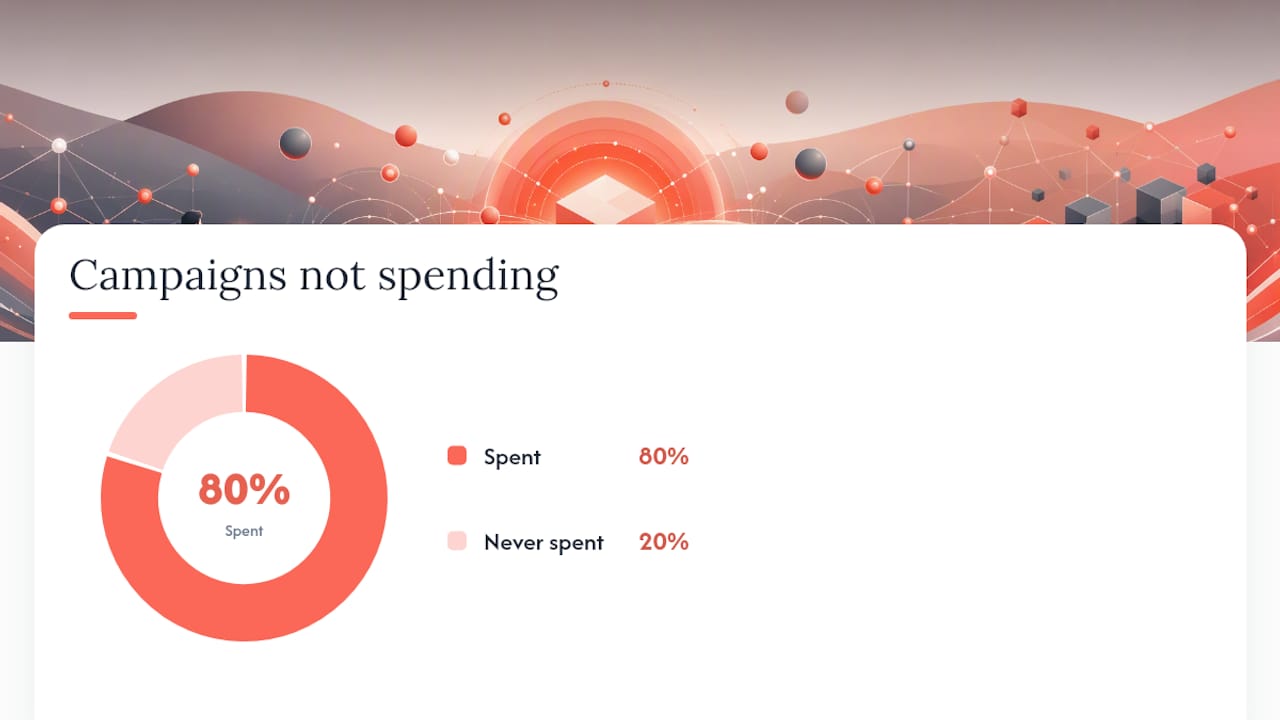
The classic examples: a lead generation ad linked to an instant form that got archived or edited after the ad was built, a Messenger destination ad pointed at a Page where admin access has since lapsed, or a Call objective campaign carrying a bid cap so tight the phone-call action essentially can’t win any auction. Each one publishes fine, shows “Active”, and then does almost nothing, and Adbloop’s research into this failure patterns documents this exact gap between what the composer validates and what delivery actually requires.
Bulk launches and API-driven imports make this worse, not better. A spreadsheet-based upload of dozens of ad sets can contain a handful with subtly broken configurations, and because the other majority run fine, the failures hide inside an otherwise healthy-looking account for days.
- Before any bulk launch, manually spot-check a random sample of ads, particularly any using instant forms, Messenger destinations or Page-dependent placements.
- Confirm every linked Page, form, and pixel still exists and still has active permissions before duplicating campaign structures from an old template.
- Roll out bulk launches in stages, a handful of ad sets first, confirmed spending normally, before pushing the rest live, rather than publishing all of them simultaneously and hoping.
- Recheck any campaign built from a duplicated template older than a few months. Assets referenced inside it (forms, Pages, pixels) can quietly change or get archived without any warning to the campaign built on top of them.
Staged rollout costs you an extra hour on launch day. It saves you from discovering three days later that a fifth of your new campaigns never spent a cent.
A weekly routine that catches problems before they cost you spend
Most $0 spend problems are avoidable with a short recurring check, not because the checks are complicated, but because nobody runs them until something’s already gone wrong.
- Billing check. Thirty seconds, once a week. Confirm no failed payment banner and no unexpected Account Spending Limit warning.
- Delivery column scan. Glance across every active ad set and read the status text, not just the colour. Anything other than a clean “Active” deserves a closer look that day, not next week.
- Events Manager health check. Confirm your primary optimisation event is still firing at a normal daily volume compared to the same period last week.
- Account Quality review. A single glance to confirm no new restriction or warning has appeared since the last check.
- Change history review. If spend dropped, check what changed in the account in the prior 48 hours, budget edits, audience edits, creative swaps, before assuming it’s a Meta-side problem.
Set alerts where you can. Reviewing budget pacing and campaign structure practices as part of this routine helps you catch pacing drift before it becomes a full stop in delivery.
Pro Tip: Change one thing at a time and give it 7 to 14 days before judging the result. Adjusting bid strategy, audience and creative in the same week means you’ll never know which change actually fixed (or broke) delivery.
The agency view: when troubleshooting alone isn’t enough
Most $0 spend problems are genuinely fixable by the advertiser running the account, and the checklist above resolves the majority of cases within a day. Where it gets harder is when three or four fixes have been tried and spend still hasn’t recovered, because at that point the problem is usually compounding, a tracking break sitting on top of an auction constraint, say, rather than a single clean cause.
Every stalled ad account should be treated the same way: verify the signal before touching the strategy. That means Events Manager and Account Quality get checked before a single bid or budget setting changes, because changing settings on top of broken tracking just produces new, confusing symptoms layered over the old one.
If your account has shown $0 or near-zero spend for more than 48 to 72 hours despite genuine, targeted fixes, that’s the point to bring in outside eyes. A structured ad account audit delivers a specific diagnosis rather than a generic “check your settings” response, a prioritised list of what to fix first, and a monitoring plan so you know within days, not weeks, whether the fix actually worked.
— Liza
Get your Meta ads account properly audited
If you’ve worked through the checklist above and spend still isn’t moving, the fastest route forward is a second set of eyes that knows exactly where these problems hide. Moor Marketing runs structured ad account audits for eCommerce brands specifically, which means the diagnosis accounts for how auction dynamics, tracking and creative interact in a store’s actual buying funnel, not a generic checklist built for any industry.

A paid audit through Moor Marketing gets you a root cause list ranked by likelihood, a prioritised fix plan you can action immediately, and 14 days of monitoring afterward to confirm the fix actually held rather than just guessing it worked. It pairs naturally with a look at Facebook advertising management if the underlying issue turns out to be structural rather than a one-off setting, and with ecommerce ad creative practices if low predicted action rate turns out to be quietly capping your auction wins. If your ad account has had $0 spend for an extended period, consider seeking expert assistance to diagnose the cause.
Where these fixes come from
The diagnostic steps in this article draw on Meta’s own auction mechanics alongside practitioner research from advertisers who troubleshoot delivery problems for a living. Jon Loomer’s breakdown of auction and bid cap issues remains one of the clearest explanations of why a technically active ad set can still lose every auction it enters. AdEspresso’s help centre article covers the billing and audience-size basics worth checking first. Adbloop’s research on silent construction failures is essential reading if you manage bulk launches or automated campaign builds. And Reuters’ reporting on Meta’s push toward fully automated ad delivery by 2026 explains why verifying your own signal in Events Manager matters more each year, rather than trusting a status label at face value. For platform-specific detail beyond what’s covered here, Meta’s own Ads Manager and Events Manager documentation should always be your first stop.
Sources
- Why is my campaign not spending? – AdEspresso Help Centre
- Why Isn’t My Ads Budget Spending? – Jon Loomer
- Why Meta Ads silently fail: the pre-flight diagnostic – Adbloop