

Enabling multi currency Shopify selling comes down to one combination: turn on Shopify Payments, then activate Shopify Markets (Shopify’s international sales tools). Once both are running, you add markets, pick presentment currencies and decide how payouts land in your bank account.
The quick route: check eligibility, enable Shopify Payments, create markets, enable local currencies, choose automatic or manual exchange rates, then add payout bank accounts if you need funds in more than one currency. Global retail e-commerce sales keep climbing according to Statista, and local pricing is one of the more reliable levers for grabbing a slice of that growth from shoppers who’d otherwise abandon a foreign-currency cart.
Key Takeaways
Multi currency Shopify selling works when Shopify Payments, Shopify Markets and a deliberate exchange rate strategy operate together, not as separate afterthoughts.
| Point | Details |
|---|---|
| Core requirement | Shopify Payments plus Shopify Markets are both mandatory to sell in local currencies. |
| Choose rates deliberately | Automatic rates carry a conversion fee up to around 2%; manual rates need the fee built in manually. |
| Three currencies, not one | Store currency, presentment currency and payout currency can all differ and must be reconciled separately. |
| Test before you trust it | Use VPN or incognito checkout tests, refund checks and country selector verification before launch. |
| Get expert help for scale | Moormarketing supports Shopify merchants through payout structuring, manual rate calculation and full international rollout. |
Table of Contents
- What do you need before enabling multi currency Shopify features?
- How do you set up multi currency on Shopify?
- How do payouts work when you sell in multiple currencies?
- What checkout and refund issues should you test for?
- How should you handle the country selector and storefront currency display?
- Should you use automatic or manual exchange rates?
- Why isn’t multi currency working correctly on your store?
- When should you handle multi currency in-house versus bring in specialists?
- Get help launching multi currency the right way
- Sources
What do you need before enabling multi currency Shopify features?
Before touching a settings toggle, confirm the basics. You need Shopify Payments active and available in your country, plus a plan that supports Shopify Markets (this comes standard on all current Shopify plans, but older legacy plans can behave differently).
Run through this before you start:
- Shopify Payments is enabled and in good standing, not still in review.
- Your store’s primary market currency is set correctly, since this becomes your baseline.
- You have verified banking details ready for any new payout currencies.
- You know which countries you’re actually shipping to and taxing correctly.
Bank verification for Multi-Currency Payouts usually asks for the same identity documents Shopify Payments required at signup, but a second bank account in a different currency needs its own verification pass. Tax and duty settings sit separately from currency settings, so check your obligations in each target country before you flip the switch, ideally with an accountant familiar with cross-border GST or VAT rules.
Pro Tip: Do this eligibility check months before a big sales period, not during it. Changing store currency or payout structure mid-campaign can scramble reporting and delay payouts right when you need cash flow most.
How do you set up multi currency on Shopify?
Setup happens in a fixed order, and skipping steps causes most of the headaches merchants report.
- Enable Shopify Payments and Shopify Markets. Go to Settings, then Payments, confirm Shopify Payments is active, then navigate to Settings, then Markets to open the international sales tools.
- Create your markets. Group countries logically (a Eurozone market, a UK market, a North America market) and assign each one its presentment currency.
- Choose automatic or manual exchange rates. Automatic rates track the market and update continuously; manual rates let you lock a fixed price per market. This toggle lives inside each market’s settings, under Preferences.
- Set rounding and price adjustments. Apply rounding rules so prices land on clean numbers (like $19.99 instead of $19.87), and use percentage adjustments or direct price overrides for specific markets where you want different margin behaviour.
Before calling it done, revisit each market page and confirm the presentment currency shows correctly, the exchange rate method is what you intended, and any price overrides saved properly. Submarkets inherit their parent market’s currency settings by default, so if you’ve nested regions, double check nothing carried over unintentionally.
Pro Tip: Add your largest or most established market first, then build outward. This gives you a clean template to copy settings from, rather than fixing inherited defaults across five markets at once.
How do payouts work when you sell in multiple currencies?
Three separate currencies matter here, and conflating them is the most common source of confused bookkeeping: store currency (your admin’s base currency), presentment currency (what the customer sees and pays in), and payout currency (what lands in your bank).
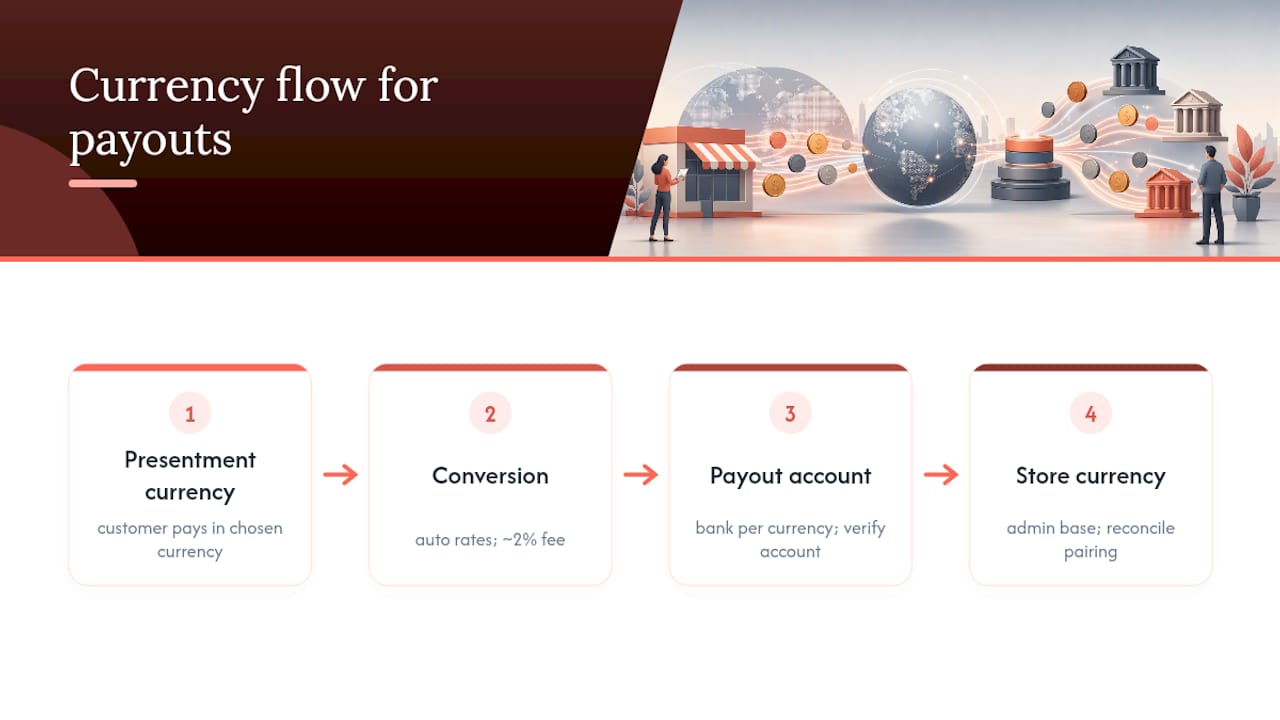
Shopify Payments allows selling in one currency and receiving payouts in another, depending on which payout currencies your bank supports. To add payout accounts, go to Settings, then Payments, then add a bank account under the relevant currency. Each account needs its own verification, and Shopify checks that the account can legally receive funds in that currency from your business entity.
Automatic exchange rates carry a conversion fee, commonly up to around 2% depending on region. That fee eats into margin on every automatic-rate transaction, so factor it into your pricing rather than discovering it in a reconciliation report three months later.
Pro Tip: If your store currency and payout currency differ, conversions happen between the customer’s currency and your payout currency, not your store currency. Reconcile against that pairing, or your numbers won’t tie out.
What checkout and refund issues should you test for?
Multi currency setups fail quietly at checkout more often than in the admin panel, so testing matters as much as configuration.
- Run checkout in an incognito window or VPN set to each target country to see what a real customer sees.
- Confirm the country selector actually appears and changes the currency correctly.
- Test a full refund and check it settles in the original presentment currency, not the store currency.
- If a country’s local currency isn’t supported, Shopify Payments falls back to the market’s base currency for that customer, so check this doesn’t surprise anyone at checkout.
- If you use manual capture rather than auto capture, know that the exchange rate can shift between authorisation and the moment you capture the payment, creating small discrepancies you’ll need to reconcile.
How should you handle the country selector and storefront currency display?
Place a visible country or region selector somewhere customers actually look, ideally the header or footer, because Shopify requires this when selling in local currencies to let shoppers confirm their region before checkout. Geolocation gets close most of the time but not always. VPNs, corporate networks and travelling customers all trip it up, so a manual override matters.
For custom or headless themes, developers should pull currency and locale from Shopify’s Liquid localization object rather than hard-coding paths, and keep structured data’s priceCurrency field dynamic so search engines index the right price per region.
Currency display follows a hierarchy: submarket customisations override parent market settings, and when a country sits in more than one market, Shopify uses the most specific match. Test with a VPN before you trust what’s live.
Pro Tip: If your theme shows the wrong currency after a market change, clear the browser’s geolocation cache before assuming your settings are broken.
Should you use automatic or manual exchange rates?
This is the decision with the biggest downstream effect on margin and brand perception.
- Automatic rates track the market in near real time, need no maintenance, and suit stores with thin catalogues or fast-moving inventory. The tradeoff is a conversion fee on top and prices that shift slightly week to week, which can look inconsistent to repeat customers.
- Manual rates lock a fixed price per market, giving you brand-consistent, round numbers that don’t wobble with currency swings. Build the conversion fee into your manual rate calculation, for example multiplying the market rate by 1.02 for a 2% buffer, so margin doesn’t quietly erode over time.
- Rounding rules and price overrides let you keep the automatic convenience while avoiding awkward numbers like $47.32, and per-market overrides handle regions where you want deliberately different pricing.
Monitor presentment conversion rate, refund variance by currency, and FX-driven margin drift monthly at minimum, weekly if you’re operating in a genuinely volatile currency. Our guide on ecommerce pricing strategy goes deeper on setting price architecture across markets.
Pro Tip: For volatile currencies, switch to manual rates with a wider rounding buffer during periods of instability, then revert to automatic once things settle. This protects margin without permanently sacrificing pricing simplicity.
Why isn’t multi currency working correctly on your store?
Most issues trace back to one of a handful of causes.
- Currency not displaying correctly: confirm Shopify Payments is active, the market’s currency is enabled, and clear geolocation cache.
- Checkout reverts to base currency: check whether the customer’s local currency is actually supported, since unsupported currencies fall back to market base currency by design, not by error.
- Payouts landing in the wrong currency or account: verify the correct bank account is linked to that payout currency and that verification completed.
- Unexpected conversion fees: check whether that market is using automatic rates, since the fee only applies there.
Pro Tip: Before contacting Shopify support, screenshot the specific market’s currency settings, the customer’s checkout screen, and your payout account list. Support resolves multi currency tickets faster with all three in hand.
When should you handle multi currency in-house versus bring in specialists?
Most merchants can manage the initial setup themselves: enabling Shopify Payments and Markets isn’t technically demanding. Where it gets harder is the ongoing decision layer: setting manual rates that protect margin without alienating customers, structuring payout banking across currencies, and untangling tax obligations once you’re genuinely trading in five or six countries.
Bring in specialist help when the payout banking gets complex, when tax and duty rules start conflicting across markets, or when you need a proper pricing audit rather than a guess at rounding rules. A focused engagement typically delivers:
- Faster rollout with fewer checkout errors during launch week.
- Better margin protection through calculated manual rates instead of default automatic settings.
- Cleaner reconciliation once payouts start arriving in multiple currencies.
Get help launching multi currency the right way
Moormarketing is the alternative to trial-and-error currency setup: instead of guessing at manual exchange rates and discovering margin leakage three months later, our team builds the pricing model and payout structure before launch, not after. For Shopify store owners looking to enhance this process, the Digital Product Passport Shopify integration offers valuable tools to improve the international customer journey and storefront localisation. We handle the technical rollout of Shopify Markets, set manual rates calculated against real conversion fees, and reconcile payout accounts so finance isn’t left untangling mismatched currencies at month end.

Merchants working with us typically see fewer checkout errors during international launches, more predictable margins across markets, and payout flows that reconcile cleanly from day one. If you’re planning an international expansion or already juggling multiple currencies without a clear pricing strategy, our ecommerce growth strategy engagement covers the full rollout, from market selection through to payout reconciliation. Book a session with our team to map out your multi currency launch before your next sales period.
Sources
- Shopify Help Center | Multi-currency